




1. What should you do if you encounter a PPC authorization failure?

The PPC authorization failure may be caused by multiple reasons:
1. You might not activate your Amazon advertising (PPC) feature on seller central. Therefore, there’s no PPC token you can connect. Please go to open the advertising on seller central.
2. You are not running PPC campaigns. Amazon’s API usually connect when you have at least one Advertising Campaign active. If you have a new account, we suggest you add one campagin via Seller Central and then try to connect again.
3. If you use multiple accounts, please make sure you are using the correct merchant account that has Advertising Api to grant consent.
4. According to Amazon‘s user rules, it doesn’t allow the same primary user email address to access PPC for more than one account. (Incorrect Permissions)
Therefore, the only workaround is to create a sub email account (guest email user account) access to your PPC of different marketplaces or accounts inside seller central.
Then, log in to the sub-email account you have just given permission to your PPC when the PPC connection login window pops out. And try the PPC API connection one more time for tool4seller’s PPC features.
P.S. One sub-email account can only authorize one Amazon seller account (Stores).


Check the Set and edit User Permissions for creating sub email account on seller central: https://sellercentral.amazon.com/help/hub/reference/G901?locale=en-US
Steps are followed:
2. How to assign permissions to sub-seller account?
- Log in to your Amazon seller central, then find the User Permissions.

- Add a new user for a sub-account that can access your Amazon stores. Input the email you trusted for creating the sub-account and click the Invite.

- Click the URL in the email and activate the invitation. And sign up for your sub-account and log in to Amazon seller central.

- Grant your sub-account with the permission of the “Campaign Manager”.

- Log in to your tool4seller account and start the Advertising API connection one more time.
- Sign out of your master account and sign in to the subemail account in the prompt windows.

- Last, click the Allow to finish.
P.S. All the advertising connections should be operated on the same computer (IP and network) you usually run your Amazon business.
Or you can try the second method:
- Log in to your Amazon Seller Central and select the login setting.
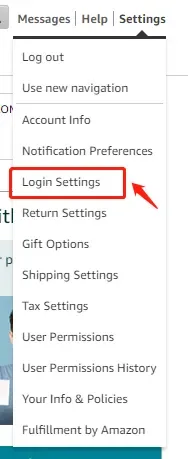
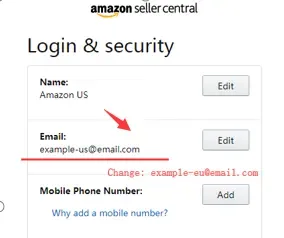
- Change your current login email. Then start to reauthorize the advertising API in tool4seller.
More questions, welcome to contact us at support@messages.tool4seller.com.