




What is tool4seller MCP?
MCP (Model Context Protocol) is an open protocol that connects AI tools with external data services.
tool4seller MCP securely provides your tool4seller data to AI tools that support MCP. Once configured and authorized, you can access and analyze your store data through natural-language conversations in AI tools such as ChatGPT, Claude, and Codex, without signing in to the tool4seller web console.
Currently, tool4seller MCP supports access to store authorization, sales summaries, listings, FBA shipments, traffic and conversion data, profit data, advertising data, and more.
What can tool4seller MCP do?
tool4seller MCP currently supports access to the following business data:
Store Authorization: Retrieve store authorization status, SP-API status, Advertising API status, and store activation status.
User Information: Retrieve the default currency, time zone, display language, account creation time, and other account information.
Sales Summary: Retrieve summarized sales performance, including sales, orders, units, and related business metrics for selected stores and date ranges.
Listings & Inventory: Retrieve listing and inventory data, including FBA and MFN inventory information, with filtering by ASIN, SKU, and other conditions.
Inventory Alerts: Retrieve alerts for low inventory, excess inventory, long-term storage fees, and recommended removals.
FBA Shipments: Retrieve FBA shipment information and shipment details.
Traffic Data: Retrieve sales, traffic, and conversion data by store, ASIN, parent ASIN, and day.
Profit Data: Retrieve profit data by store, SKU, ASIN, parent ASIN, and day.
Advertising Data: Retrieve advertising performance, campaigns, targeting, search terms, and attributed purchase data.
Reviews: Retrieve product rating data for ASINs with Review tracking enabled.
Note: tool4seller MCP provides data access capabilities. Data analysis and interpretation are performed by AI assistants.
Use Cases
tool4seller MCP is designed for users who want to access and analyze store data directly through AI tools that support MCP.
By asking questions in natural language, you can quickly retrieve sales, inventory, advertising, and profit data, then use AI assistants to generate insights and support business decisions.
Configure tool4seller MCP
Choose the configuration method based on the AI tool you use.
Before You Begin
Before configuring tool4seller MCP, make sure you have:
- A Standard or higher tool4seller plan.
- A valid tool4seller account.
- An AI tool that supports MCP (Model Context Protocol).
MCP Server Information
- Name: tool4seller-mcp
- Server URL: https://das-server.tool4seller.com/mcp
Configure in ChatGPT (Desktop / Web)
Step 1: Install tool4seller
From the left menu, select Plugins, search for tool4seller, and click Install.

Step 2: Sign In and Authorize
After installation, click Continue with tool4seller.

Your browser will open the tool4seller sign-in page. Enter your tool4seller account credentials to complete authorization.

Step 3: Verify the Connection
Return to ChatGPT and confirm that the tool4seller plugin is installed.

Open a chat, click the + icon next to the input box, and select tool4seller. Enter:
View the current logged-in user of tool4seller
If account information is returned successfully, the connection is complete.

Configure in Codex
Note: If you sign in to Codex with your ChatGPT account, follow the steps in Configure in ChatGPT (Desktop / Web). The following steps are only for users who sign in to Codex using an API key.
Step 1. Open MCP Settings
Click Settings in the bottom-left corner. Select Plugins, switch to the MCP page, and click Add Server.
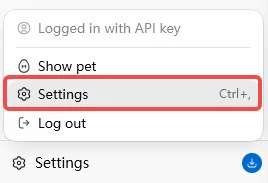
From the left menu, select Plugins, switch to the MCP page, and click Add Server.

Step 2. Add the MCP Server
On the Connect to Custom MCP page, select Streamable HTTP. Enter the server name and URL shown above, and click Save.
- Name: tool4seller-mcp
- Server URL: https://das-server.tool4seller.com/mcp

Step 3: Sign In and Authorize
Return to the MCP server list and click Authenticate next to tool4seller-mcp. Your browser will open the tool4seller sign-in page.
If the Authenticate button is not available, return to the chat window and enter:
Help me open the tool4seller MCP authorization page.
Follow the on-screen instructions to sign in to your tool4seller account and complete authorization.
Step 4: Verify the Connection
Return to the chat window and enter:
View the current logged-in user of tool4seller
If account information is returned successfully, the MCP service is connected.

Configure in Claude Desktop
Step 1: Open Connectors
Click Customize in the top-left corner. Select Connectors, click +, and select Add custom connector.

Step 2: Add the MCP Server
Enter the server name and URL shown above, and click Add.
- Name: tool4seller-mcp
- Server URL: https://das-server.tool4seller.com/mcp

Step 3: Enable Automatic Authorization
After adding tool4seller-mcp, change the permission setting in the top-right corner to Always allow.

Step 4: Sign In and Authorize
Return to the chat window and enter:
View the current logged-in user of tool4seller
Click Connect. Your browser will open the tool4seller sign-in page. Enter your tool4seller account credentials to complete authorization.

Step 5: Verify the Connection
After authorization, return to Claude. If account information is returned successfully, the MCP service is connected.
Current Limitations
- Only Standard and higher plans are supported.
- You can only access data from stores authorized for the current account.
- User Accounts can access their own stores, but cannot access stores assigned or shared by a Primary Account. To access those stores, sign in with the corresponding Primary Account.
- Currently, only account password sign-in is supported. SMS verification codes and third-party authentication are not available.
Frequently Asked Questions
What is the difference between tool4seller MCP and tool4seller CLI? Do I need to configure both?
No. Both provide access to your tool4seller data, but they are designed for different types of AI tools.
- tool4seller MCP: Designed for AI tools that support MCP, such as ChatGPT, Claude, and Codex.
- tool4seller CLI: Designed for AI coding assistants that can execute local commands, such as Claude Code and Codex CLI.
Choose the integration method that matches your workflow. You do not need to configure both.
Why can’t I access some stores after signing in?
tool4seller MCP can only access stores authorized for the current account.
If you sign in with a User Account, you cannot access stores assigned or shared by a Primary Account. To access these stores, sign in with the corresponding Primary Account.