




What is tool4seller MCP?
MCP (Model Context Protocol) is an open protocol that connects AI tools with external data services.
After connecting to tool4seller MCP, you can query your Amazon store data, analyze business performance, and create or update ads through natural-language conversations in AI tools that support MCP, such as ChatGPT, Claude, and Codex.
For example, you can ask your AI assistant to analyze why sales have declined, identify products running low on stock, or propose budget and bid adjustments based on advertising performance. Before creating or modifying ads, the system displays a preview of the proposed changes and applies them only after you confirm.
What can tool4seller MCP do?
tool4seller MCP supports business data queries, performance diagnostics, and advertising management across the following areas:
| Data Type | Description |
|---|---|
| Account and Store Information | View the current user’s default currency, time zone, display language, and account creation time. For authorized stores, view seller and marketplace information, store activation status, and SP-API and Amazon Ads API authorization status. |
| Business Performance Diagnostics | Use sales, traffic, profit, advertising, and inventory data from a single store to assess overall business performance, investigate sales changes and profit anomalies, evaluate advertising efficiency, and identify inventory risks. |
| Sales and Traffic | Retrieve sales summaries, daily trends, and SKU-level sales data for one or more stores. View sales and traffic metrics for a single store at the store, ASIN, or parent ASIN level. |
| Profit Data | Retrieve profit data for a single store over a specified date range, with breakdowns by store, SKU, ASIN, or parent ASIN. |
| Inventory and Inventory Alerts | View FBA and merchant-fulfilled inventory for a single store, along with alerts for low stock, excess inventory, long-term storage, and recommended removals. Filter results by product and fulfillment method. |
| FBA Inbound Shipments | Retrieve FBA inbound shipments and their item details for one or more authorized sellers. Item details can be retrieved for up to 100 shipments per query. |
| Product Ratings | Retrieve ratings for parent ASINs with Review Tracking enabled in a single store. Parent ASINs without tracking enabled or available rating data are excluded from the results. |
| Advertising Performance and Attribution | View advertising performance for a single store at the store, SKU, ASIN, or parent ASIN level. Review search term performance, identify the products customers purchased after clicking ads, and view their attributed performance. |
| Advertising Campaigns and Structure | View information about campaigns, ad groups, product ads, and portfolios, including budgets, default bids, enabled or paused status, delivery status, and their relationships, where applicable. Product ad queries cover SP, SD, and SB ads. |
| Targeting and Negative Targeting | View performance, bids, and enabled or paused status for keyword, ASIN, category, and automatic targeting, including targets with no traffic. For negative keywords and negative ASIN targets, view match types, statuses, whether they are in effect, and their associated campaigns or ad groups. |
| Targeting and Bid Recommendations | Retrieve Amazon-recommended keywords or ASINs, along with suggested bids and bid ranges for targets. Bid recommendation queries support up to 100 targets at a time. Retrieving recommendations does not create targets or change bids. |
| Ad Creation | Build Sponsored Products (SP) campaigns, ad groups, product ads, and targets, and configure bids and negative targeting. You can provide the required information in stages and resume working on a draft after an interruption. |
| Ad Updates | Add new campaigns, ad groups, ads, or targets, or update existing budgets, bids, names, and enabled or paused statuses in bulk. You can also add keywords, product targets, and negative targets. Before changes are applied, a preview shows the affected items and proposed changes for your confirmation. |
Note: tool4seller MCP provides data queries, diagnostic tools, and ad management capabilities. Your AI assistant analyzes and interprets the returned data. Querying data, retrieving recommendations, or generating a preview does not modify your ads. Ad changes are applied only after you confirm.
Use Cases
Describe your business question in natural language. You can also specify the store, date range, filtering criteria, and changes you would like to make.
| Example Prompt | What tool4seller MCP Can Help With |
|---|---|
| Review my store’s performance over the last 7 days, compare it with the previous 7 days, and highlight the key metrics showing growth, declines, or unusual changes. | Summarize changes in business metrics and highlight key areas of growth, decline, and unusual fluctuations. |
| Why did my store’s sales volume decline this week? Analyze changes in traffic, conversion rate, advertising, and inventory, and identify the ASINs or SKUs with the greatest impact. | Investigate potential causes using traffic, conversion, advertising, and inventory data. Identify the products with the greatest impact and provide supporting data. |
| Why did my profit margin decline this month even though sales revenue increased? Identify the products with the greatest impact and analyze whether advertising costs contributed to the decline. | Break down profit changes by product to identify the main contributors to the decline and assess the impact of ad spend. |
| Find SKUs at risk of running low on stock and sort them by days of inventory remaining, from lowest to highest. Use average daily sales to recommend replenishment quantities and timing categories. | Generate a prioritized replenishment list showing inventory status, recommended replenishment quantities, and timing categories. |
| Review advertising performance over the last 14 days using clicks, orders, spend, ACOS, ROAS, and CPC. Identify wasted spend and growth opportunities, and generate an optimization plan for my approval. | Turn diagnostic findings into proposed budget, bid, and status adjustments, showing the affected items and their current and proposed values. |
| Find search terms in the US marketplace with at least 20 clicks, no orders, and more than $10 in spend over the last 14 days. Sort them by spend from highest to lowest. First, list the recommended negative keywords or ASINs. After I confirm which campaigns or ad groups to apply them to, generate a plan to add them in bulk. | Exclude existing negative targets, generate a recommendation list, and prepare a bulk change plan for the campaigns or ad groups you select. |
| Find targets with at least 20 clicks over the last 15 days. Reduce bids by 10% for targets with orders and an ACOS above 40%. Pause targets with no orders and more than $10 in spend. Generate a preview of the proposed changes first—do not apply them yet. | Filter targets based on the specified rules, calculate new bids, and generate a plan for bid adjustments and pauses. |
| Find search terms and ASINs with at least 20 clicks, at least 3 orders, and an ACOS below 40% over the last 30 days. Group your recommendations into tiers based on order count, ACOS, and conversion rate. First, provide a candidate list and a preview of the proposed campaigns. After I confirm, create separate manual campaigns for the selected targets, using Amazon’s suggested bids as the primary reference. | Identify promising targets for separate campaigns and prepare drafts for manual keyword-targeting and product-targeting campaigns, ready to create after your approval. |
Before You Begin
Before configuring tool4seller MCP, make sure the following requirements are met:
- You are using a tool4seller Primary Account or a User Account with access to stores that belong to that account. User Accounts cannot access stores assigned or shared by a Primary Account.
- The Amazon stores you want to query or manage are authorized under your current account and enabled.
- The relevant store must have valid Selling Partner API (SP-API) authorization to query business data and valid Amazon Ads API authorization to query advertising data or manage ads.
- Your current tool4seller plan includes MCP access. Check the pricing page for details on plan features.
- Your AI tool supports MCP. To connect using an MCP Key, it must also support Streamable HTTP and custom request headers.
Configure tool4seller MCP
Choose one of the following connection methods based on the AI tool you use:
| Connection Method | When to Use It |
|---|---|
| Connect Through the Plugin or Connector Directory | Install tool4seller from Plugins in ChatGPT or from Connectors in Claude, then sign in to your tool4seller account to authorize access. |
| Connect Using an MCP Key | Use this method to configure a custom MCP server, or when your AI tool does not provide a plugin or connector directory or does not list tool4seller. Your tool must support Streamable HTTP and custom request headers. |
Connect Through the Plugin or Connector Directory
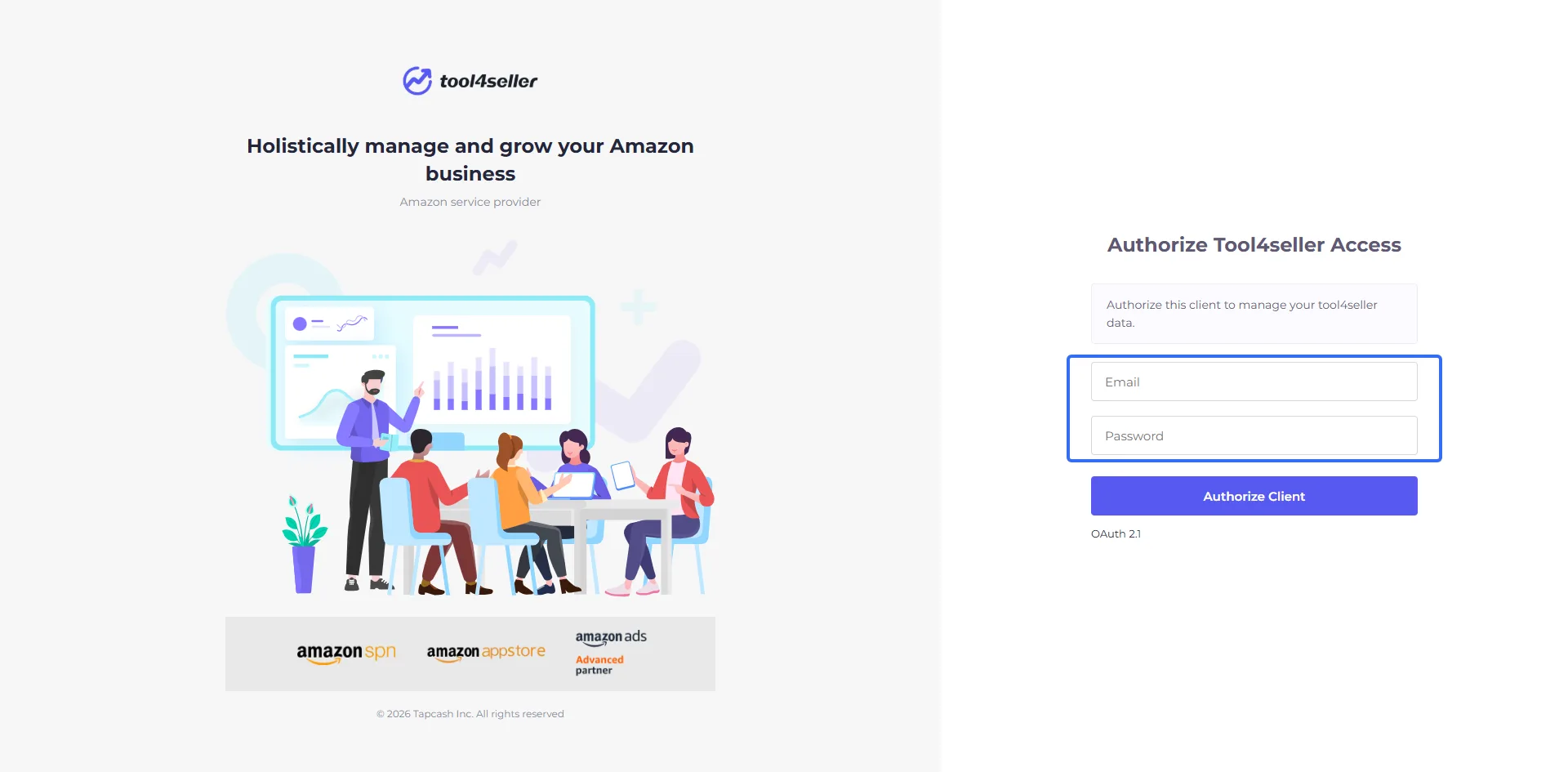
When connecting through ChatGPT Plugins or Claude Connectors, sign in with your tool4seller account and password. SMS verification codes and third-party sign-in are not currently supported. If you have not set a password, set one in tool4seller first.
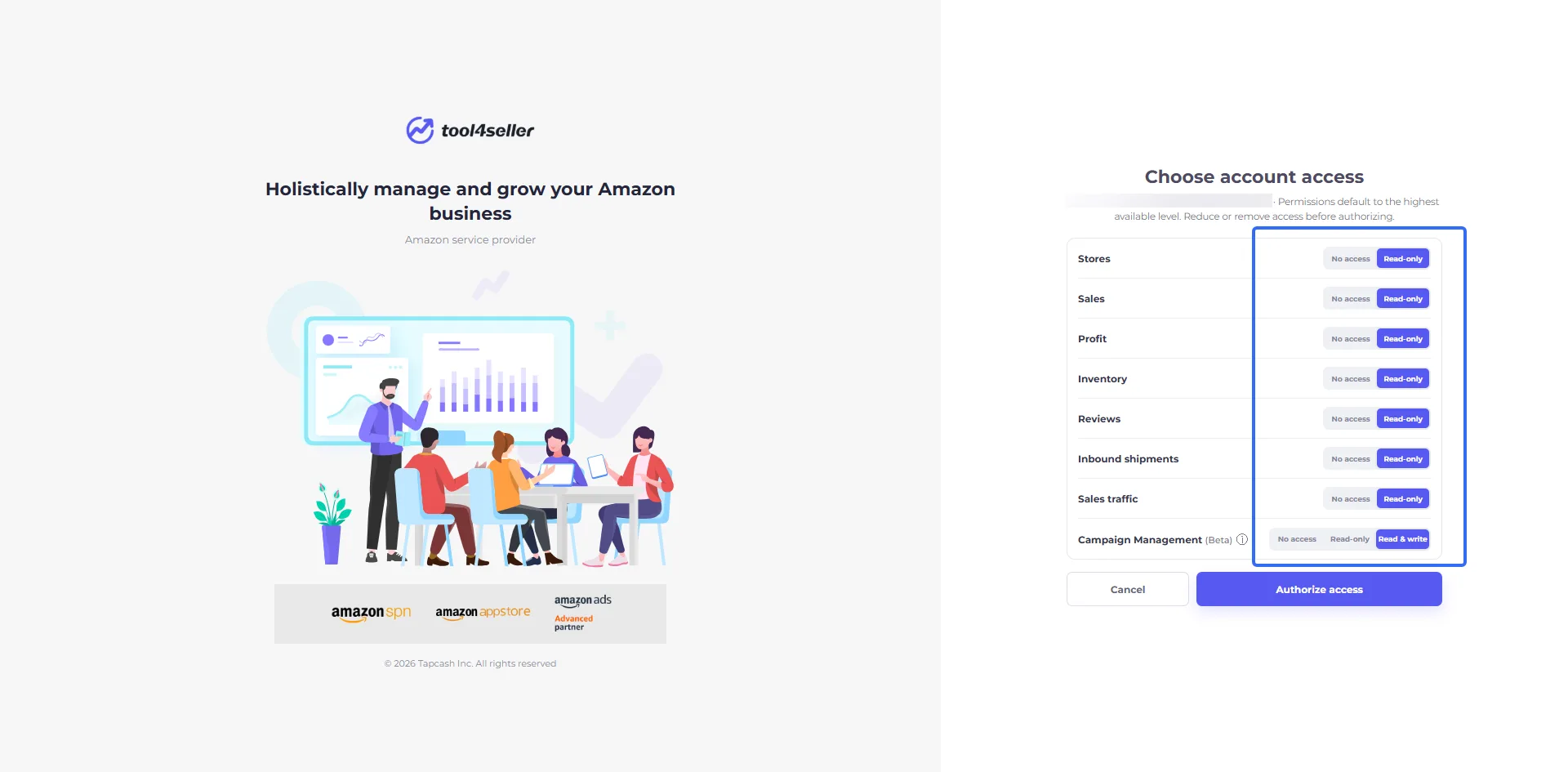
When authorizing the connection, select the account access permissions you need. To create or update ads, enable read and write access for Ad Management.
Configure in ChatGPT (Web or Desktop)
Install tool4seller
Open the tool4seller plugin page in ChatGPT and click Install.
Alternatively, search for tool4seller under Plugins in ChatGPT and install it.

Sign in to tool4seller
After installation, enter your tool4seller account credentials on the sign-in page that opens.
Confirm access permissions
Select the account access permissions you need, then confirm authorization.


Once authorized, follow the instructions in “Verify the Connection” below to check the connection status.
Configure in Claude (Web or Desktop)
Open the tool4seller connector
Open the tool4seller connector page in Claude.
Alternatively, open Search and tools in Claude chat, select Add connectors, search for tool4seller, and open the result.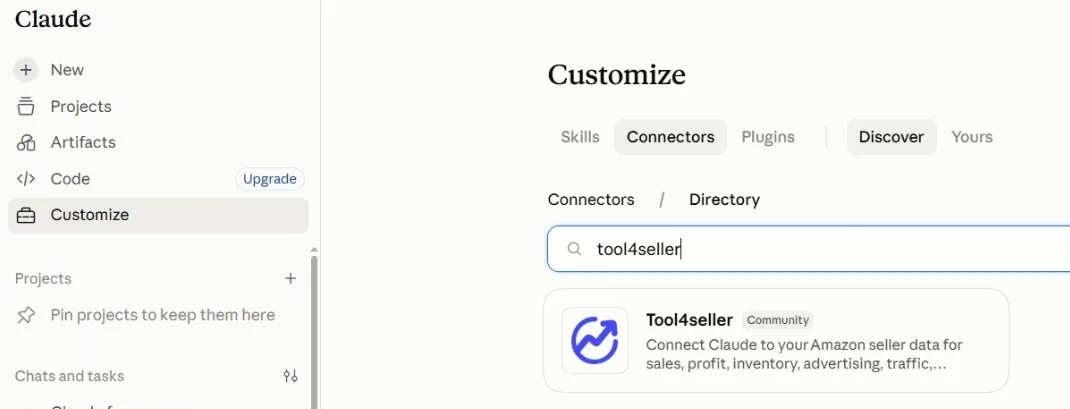
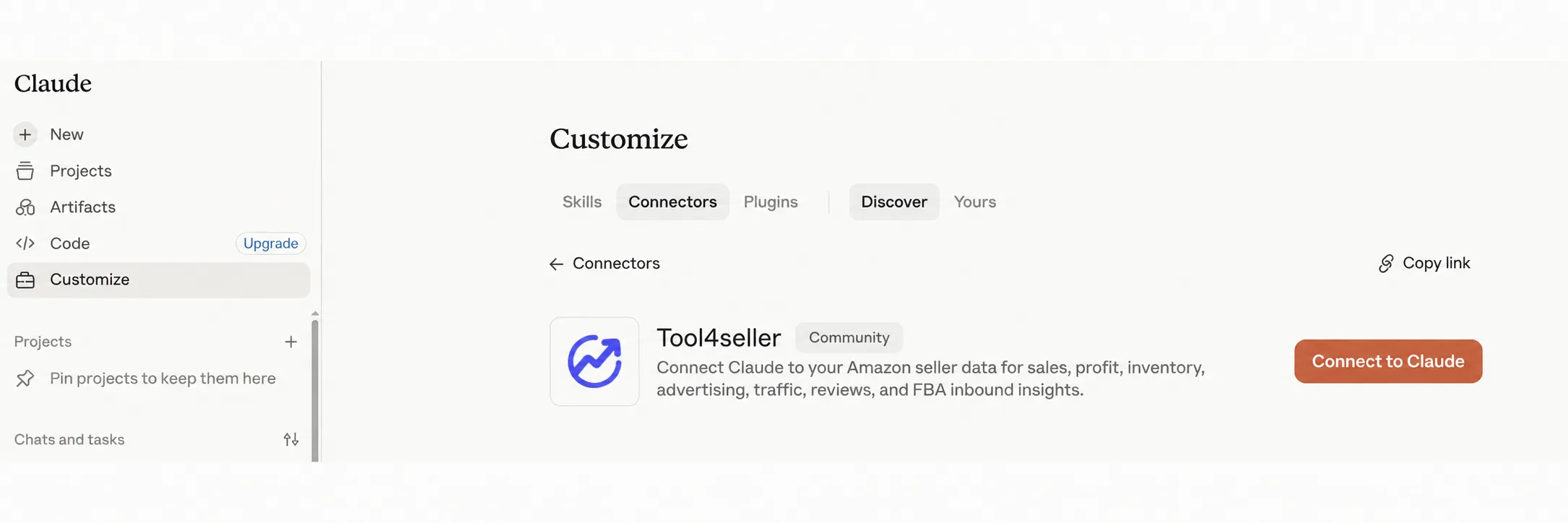
Add the connector
On the tool4seller connector page, click Connect to Claude.
Sign in to tool4seller
Enter your tool4seller account credentials on the sign-in page that opens.
Confirm access permissions
Select the account access permissions you need, then confirm authorization.


Once authorized, follow the instructions in “Verify the Connection” below to check the connection status.
Connect Using an MCP Key
You can generate an MCP Key in tool4seller and enter it in your AI tool’s custom MCP configuration to authenticate access to tool4seller MCP.
Sign in to tool4seller and go to Data Service Platform → MCP Server.
Select Method 2: Configure with an MCP Key.
Generate and copy your MCP Key for use in the following configuration steps.
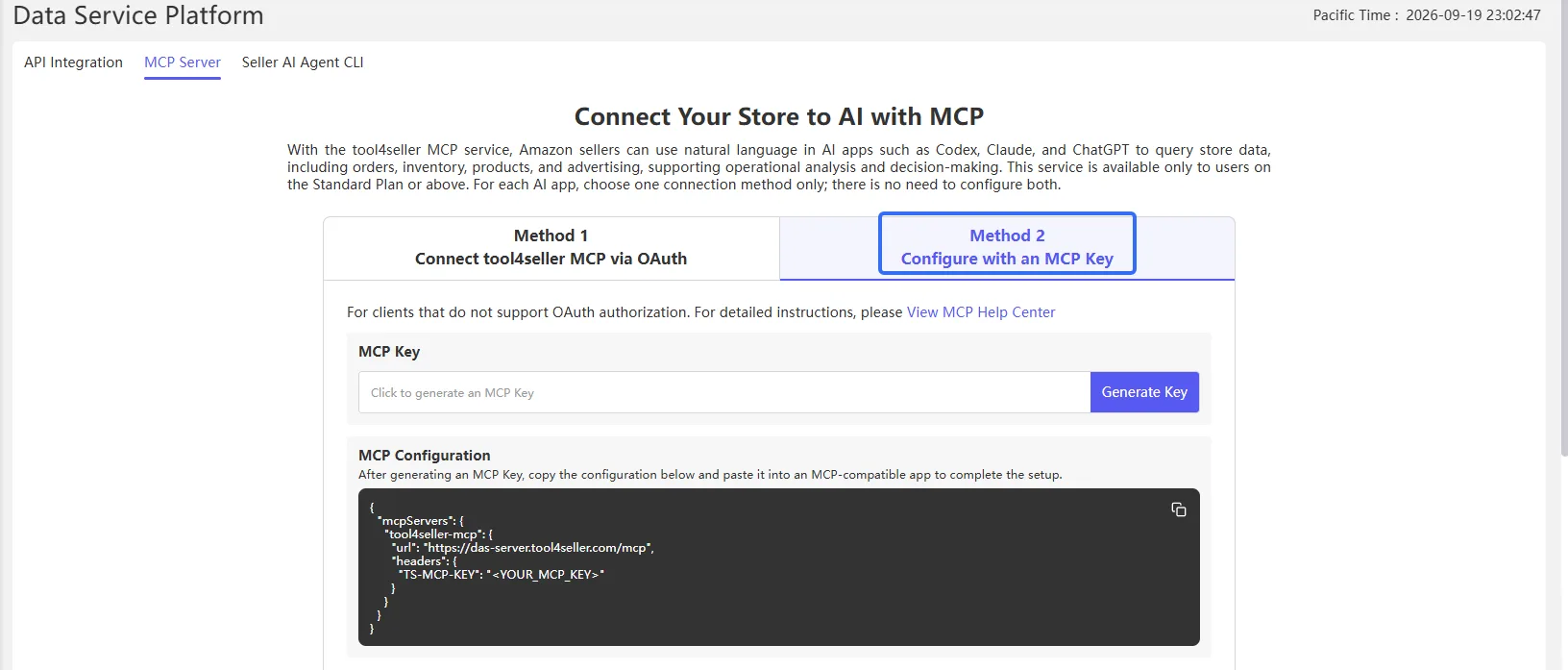

Note: Keep your MCP Key secure. Anyone who obtains your key may be able to access core business data for all stores authorized under your account and perform available advertising operations. Do not share your key. If you suspect it has been exposed, reset it immediately. You are responsible for any risks or losses resulting from key exposure, sharing, or misuse.
MCP Server Information
| Setting | Value |
|---|---|
| Name | tool4seller-mcp |
| Transport | Streamable HTTP |
| Server URL | https://das-server.tool4seller.com/mcp |
| Header Name | TS-MCP-KEY |
| Header Value | The MCP Key you generated in tool4seller |
General Configuration Example
If your AI tool supports adding MCP servers through a configuration file, use the following example as a reference. Replace <YOUR_MCP_KEY> with the MCP Key you generated.
{ "mcpServers": { "tool4seller": { "url": "https://das-server.tool4seller.com/mcp", "headers": { "TS-MCP-KEY": "<YOUR_MCP_KEY>" } } }}
Configuration formats may vary between AI tools. Follow the configuration requirements of the tool you are using.

Configure in Codex Desktop
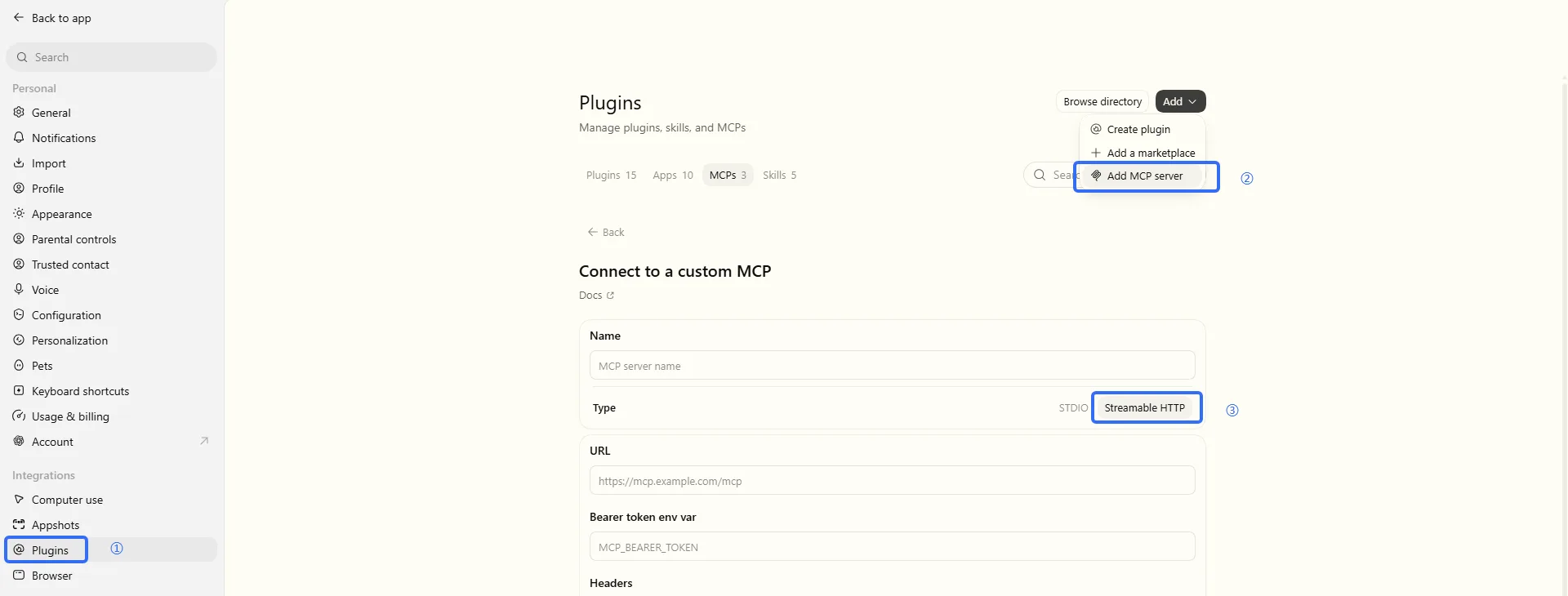
Add a server
Open Settings in the bottom-left corner, select Add → Add MCP Server, and choose Streamable HTTP as the connection type.
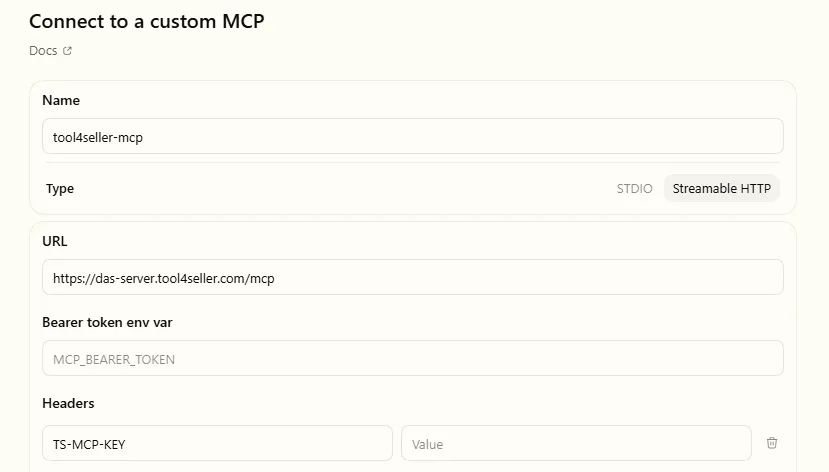
Enter the connection details
Set the name to tool4seller-mcp and the URL to https://das-server.tool4seller.com/mcp.
Add a request header
Enter TS-MCP-KEY as the header name and your generated MCP Key as the value.
Save the configuration
After saving, follow the instructions in “Verify the Connection” below to check the connection status.


Configure in Claude Desktop
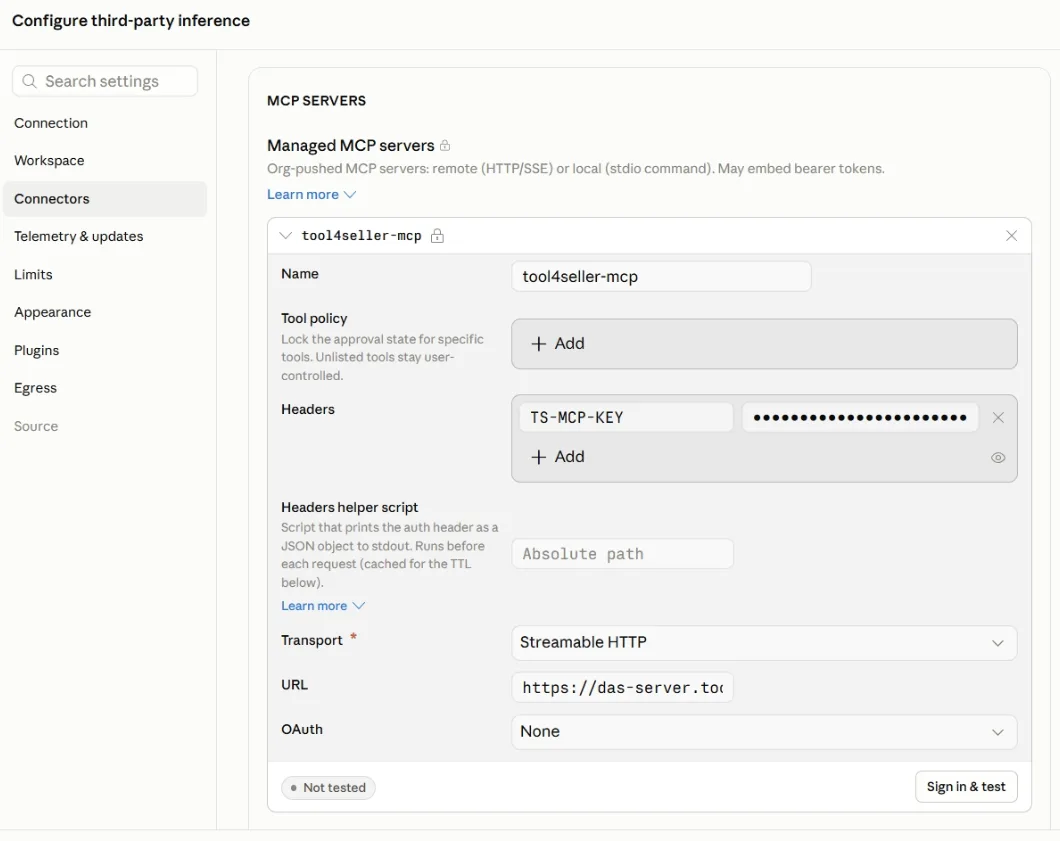
Add a server
Select Connectors in the left sidebar and add a new entry under Managed MCP servers.
Enter the connection details
Set Name to tool4seller-mcp, select Streamable HTTP for Transport, and enter https://das-server.tool4seller.com/mcp as the URL.
Add a request header
Enter TS-MCP-KEY as the header name and your generated MCP Key as the value.
Save and restart
Click Apply Changes to save the configuration, then restart the Claude desktop app as prompted.
Once complete, follow the instructions below to verify the connection.

Verify the Connection
After completing setup, return to your AI chat, select or enable tool4seller, and enter:
"Show my current tool4seller account information and list each authorized store’s marketplace, activation status, and SP-API and Amazon Ads API authorization status."
If your account and store information is returned correctly, the connection is successful. Also check that the store you want to access is enabled and has valid API authorizations for the data queries or ad management tasks you want to perform.

Current Limitations
tool4seller MCP currently has the following limitations:
- Account Access: Primary Accounts can access stores authorized under the current account. User Accounts can access stores that belong to their account, but cannot access stores assigned or shared by a Primary Account.
- Feature Availability: Available features depend on your current plan, store status, relevant API authorizations, and the access permissions granted when connecting.
- Plugin or Connector Sign-In: When authorizing through ChatGPT Plugins or Claude Connectors, you must sign in with your tool4seller account and password.
- Ad Changes: Before creating or updating ads, the system generates a preview of the proposed changes. Changes are applied only after you confirm.
Frequently Asked Questions
Will the AI modify my ads without my confirmation?
No. Before creating or updating ads, the system generates a preview showing the affected items and proposed changes. tool4seller MCP applies the changes only after you confirm, then returns the execution results.
What is the difference between tool4seller MCP and tool4seller CLI? Do I need to configure both?
No. You only need to configure the one that matches your AI tool.
Both tool4seller MCP and tool4seller CLI allow you to access your tool4seller data, but they are designed for different types of AI tools.
- tool4seller MCP: Designed for AI tools that support MCP, such as ChatGPT, Claude, and Codex.
- tool4seller CLI: Designed for AI coding assistants that can execute local commands, such as Claude Code and Codex CLI.
Choose the integration method that matches your workflow. You do not need to configure both.
Can I use tool4seller MCP with a User Account?
Yes. A User Account can use tool4seller MCP to access data for stores that belong to that account.
However, a User Account cannot access stores that have been assigned or shared by a Primary Account. To access data for those stores, sign in with the corresponding Primary Account.