




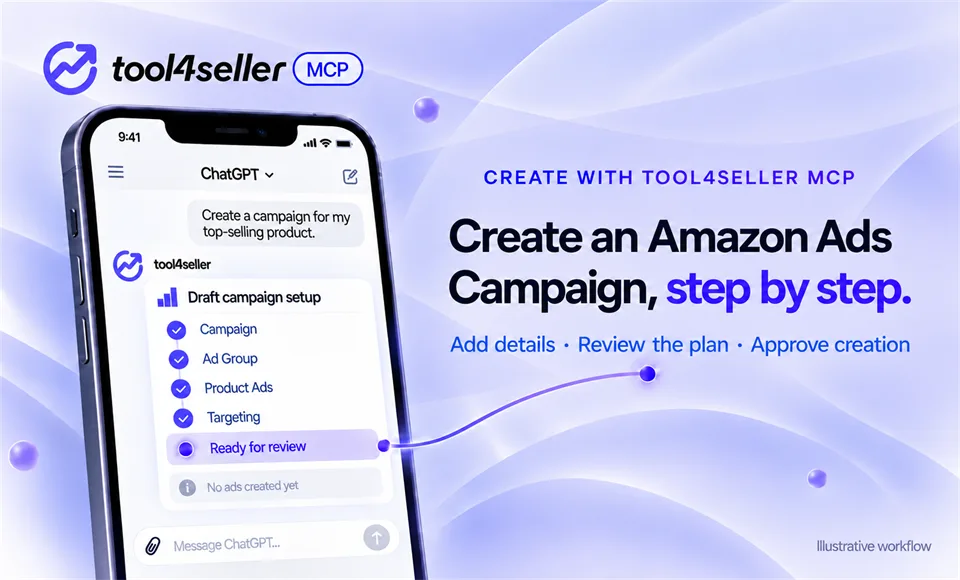
Creating an Amazon Ads campaign involves more than choosing a name and budget. You also need to define an ad group, select the products to advertise, and decide how to target shoppers.
With tool4seller MCP, you can work through those decisions in a conversation in ChatGPT or Claude. Provide the details you know, answer follow-up questions, and review the complete structure before approving creation. A request to prepare a campaign does not create one.
Here is what that process could look like.
An illustrative campaign example
Suppose a seller wants to build a keyword-targeted campaign for two eligible products in a US store. They know the products and have a daily budget in mind, but want to supply the remaining details step by step.
The campaign name, products, keywords, and bids below are examples , not a real campaign record or bid recommendations. Available creation actions and required fields depend on the supported ad type and advertising objects in the connected account.
Start with the goal
The seller does not need to fit the entire campaign into the first message. They can begin with the outcome they want and set a clear boundary:
Seller: Help me prepare a keyword-targeted Amazon Ads campaign for two products in my US store. Ask me for the required information step by step. Do not create any advertising objects until I have reviewed and approved the full plan.
The assistant can then ask for missing campaign settings, such as the name and budget, rather than guessing them.
Assistant: What campaign name and daily budget would you like to use?
Seller: Name it “Trail Shoes | Keyword Test” and set a daily budget of $25.
The seller has provided part of the setup—but has not authorized the campaign to be created.
Define the ad group and product ads
Next, the conversation moves to the ad group and the products that will be advertised.
Assistant: What should the ad group be called, and which eligible products should it contain?
Seller: Use “Core Trail Keywords” for the ad group. Add these two products: [ASIN A] and [ASIN B].
In a real setup, the seller would provide the actual products available in the authorized store. The assistant may ask for other required details depending on the selected campaign setup. Those details should be supplied and checked before moving to creation.
Add targeting and bids
The seller can provide targeting information in another message. For this example, they choose two keywords with different match types and starting bids:
Seller: Add “trail running shoes” as an Exact match target with a $0.70 bid, and “lightweight trail shoes” as a Phrase match target with a $0.60 bid. Do not add negative targets for now. Tell me if anything else is required.
These are seller-provided example bids—not values that tool4seller MCP has identified as optimal. If the seller wants to examine available suggested bids or bid ranges, they can request that information separately. Looking up a recommendation does not create a target or change a bid.
Review the entire structure before creation
Once the required information has been collected, the seller can ask for a complete preview:
Show me every advertising object and setting you plan to create: the campaign, ad group, product ads, targets, bids, and any negative targets. Flag missing or unsupported details. Do not execute anything yet.
An excerpt of the example plan might look like this:
- Campaign: US store · “Trail Shoes | Keyword Test” · $25 daily budget
- Ad Group: “Core Trail Keywords”
- Product Ads: [ASIN A] and [ASIN B]
- Keyword Target 1: “trail running shoes” · Exact · $0.70
- Keyword Target 2: “lightweight trail shoes” · Phrase · $0.60
- Negative Targeting: None requested
The seller should also check any other required settings shown in the actual preview, including dates and status where applicable. If a product, match type, bid, or budget is wrong, they can request a correction and review the updated plan. They should not confirm an incomplete or unexpected structure.
Confirm, create, and check the result
A full Sponsored Products setup is created in stages: campaign, ad group, product ads, and targets. Review and explicitly confirm each stage’s plan before it is applied. Approval of one stage does not authorize the next.
Seller: I have reviewed the current campaign preview. I approve creation of this campaign exactly as shown. Do not create the ad group, product ads, or targets yet.
After the campaign is created, review the result and the next stage’s preview. Repeat the review, confirmation, and execution process for each remaining stage.
You can provide missing information later
A campaign setup does not have to be completed in one sitting. If the conversation stops after the ad group is defined, the seller can return and ask:
Continue the campaign setup. Summarize the details I have already provided, then ask for anything still missing. Do not create the campaign yet.
tool4seller MCP supports collecting creation details across multiple messages and continuing after an interruption. When resuming, the seller should still check the recap. A remembered campaign name or bid should not be approved without verifying that it is the intended value.
Try the workflow with your own campaign
Start with a request that asks for questions, not immediate execution:
Help me prepare a new Amazon Ads campaign for [products] in [marketplace]. Collect the required information step by step. Show me the complete structure and wait for my explicit approval before creating anything.
You will need an eligible tool4seller account, access to the relevant store, Amazon Ads authorization, and tool4seller MCP configured in a compatible AI application. The available creation actions depend on the ad type, object, and permissions involved.
If you are new to the connection, you can read the tool4seller MCP overview and follow the setup guide.
Ready to try it? Start your free 14-day tool4seller trial or view our plans.