




Updating several campaigns can be straightforward when you know exactly which campaigns are in scope—and what will change on each one. The important step is not the bulk request itself. It is reviewing the full change plan before anything is applied.
With tool4seller MCP connected to ChatGPT or Claude, you can find campaigns in an authorized store, prepare supported updates through a conversation, and inspect the current and proposed values before confirming.
Here is an illustrative example. The campaign names, IDs, budgets, and decisions below are examples, not real account data or recommendations.
1. Find the campaigns—without changing them
Suppose a seller has reviewed their advertising plans and wants to adjust two daily budgets and pause one campaign. They start by narrowing the scope:
In my authorized store [Store name or ID] on the US marketplace, find campaigns with names beginning “Trail Shoes |”. Confirm the store, marketplace, and currency, then show each campaign’s ID, ad type, current daily budget, and status. Do not make any changes.
The campaign IDs matter. Names alone may not be enough to distinguish similar campaigns, especially when several accounts or ad types are involved. The seller checks the returned list and selects three specific campaigns for the next step.
Finding campaigns is a read-only task. It does not authorize a budget or status change.
2. Prepare a limited change plan
The seller then gives the AI assistant exact instructions:
For these three campaign IDs only: change [Campaign ID 01] to a $30 daily budget, change [Campaign ID 02] to a $20 daily budget, and pause [Campaign ID 03]. Do not change campaign names, bids, targeting, or any other campaigns. Show me the complete change plan first. Do not apply it yet.
This request defines both the intended changes and their boundaries. It does not ask the assistant to decide which campaigns deserve more budget or to make additional “optimizations.”
If a requested operation is unavailable for a selected ad type or campaign, that limitation should be flagged before the seller confirms anything.
3. Compare current and proposed values
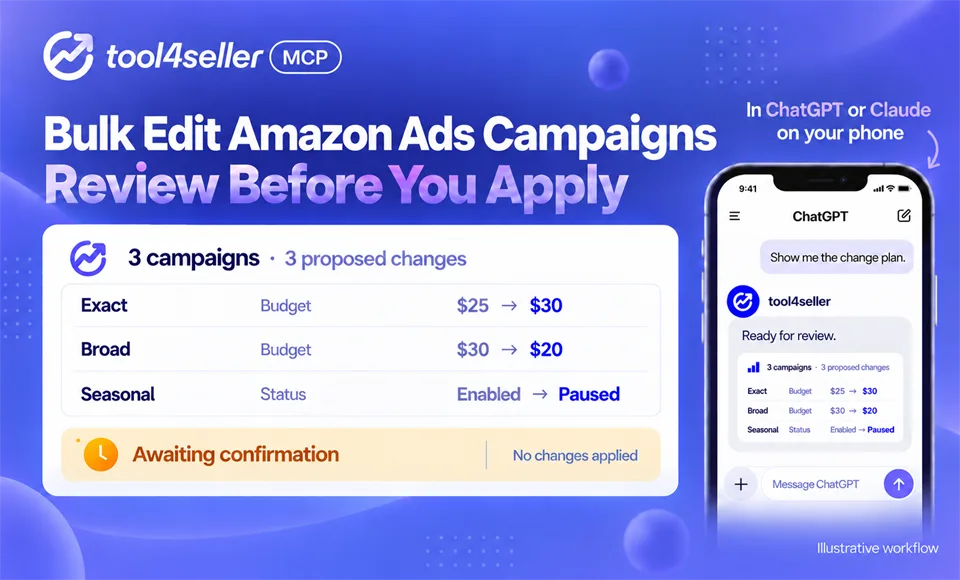
A preview should make the affected objects and fields easy to check. In this example, it might look like this:
Store: [Store name or ID]
Marketplace: US
Currency: USD
| Campaign | Campaign ID | Field | Current value | Proposed value |
|---|---|---|---|---|
| Trail Shoes | Exact | [Campaign ID 01] | Daily budget | $25 | $30 |
| Trail Shoes | Broad | [Campaign ID 02] | Daily budget | $30 | $20 |
| Trail Shoes | Seasonal | [Campaign ID 03] | Status | Enabled | Paused |
Scope: three campaigns, two budget changes, and one status change in the US store. No names, bids, targeting settings, or other campaigns are included.
Before approving, the seller should check the store, currency, campaign IDs, current values, proposed values, and total number of changes. If an ID is wrong or a current value has changed since the first query, they can request a fresh preview. An unexpected row should be corrected or removed—not approved as part of the batch.
Preparing this comparison does not modify the campaigns.
4. Confirm, apply, and check each result
Only after reviewing the latest preview does the seller explicitly approve it:
I have reviewed the latest preview. Apply exactly these three changes to the listed campaign IDs. Do not change anything else.
The connected workflow can then execute the supported updates and return a result for each item. The seller should check which changes succeeded, which failed, and whether any warnings were returned. If the batch is only partially successful, or an outcome is unclear, query the affected campaigns again to verify their current budgets and status. Then request a fresh preview containing only changes that are still needed, review it, and explicitly confirm any further update. Do not automatically repeat the original batch.
Keep the scope visible
A useful bulk-change request answers four questions: Which store? Which objects? Which fields? What values? The preview adds a fifth: Does the proposed change match the request?
This example focuses on Campaign-level budgets and status. Other supported updates may involve names or Ad Groups, but editable fields vary by advertising object and ad type. Being able to query an object does not mean every field on it can be modified.
Reviewing changes on mobile
In a supported ChatGPT or Claude mobile setup, sellers can review a proposed change while away from their desk. The same checks still apply: scroll through the full preview and verify the store, currency, campaign IDs, and proposed changes before confirming.
If you are new to the connection, you can read the tool4seller MCP overview and follow the setup guide.
Ready to try it? Start your free 14-day tool4seller trial or view our plans.