




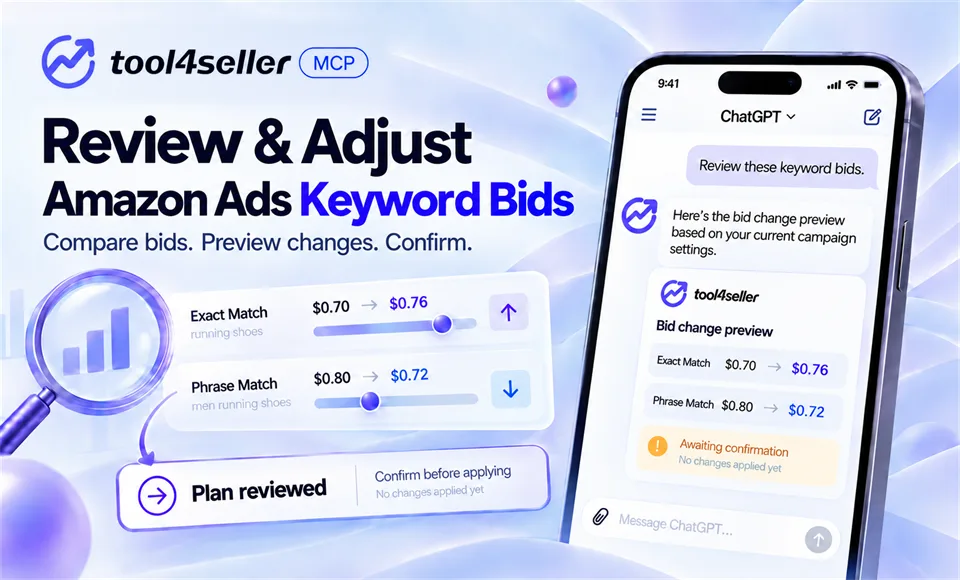
Amazon’s suggested bid can be a useful reference, but it does not tell you whether a bid change fits your campaign goal. Before adjusting a keyword target, you need to see its recent performance, current bid, suggested bid, and suggested range together.
With tool4seller MCP connected to ChatGPT or Claude, you can retrieve that information from an authorized store, prepare a change plan, and review the exact values before confirming an update.
The keywords, target IDs, performance figures, and bid decisions below are illustrative. They are not real account data, bid recommendations, or predictions of advertising results.
1. Start with performance and current bids
Suppose a seller wants to review two keyword targets in a US store. They begin with a read-only request:
In my authorized US store, show the keyword targets in [Campaign ID] and [Ad Group ID] for the last 30 complete days. Include each target ID, keyword, match type, spend, attributed sales, orders, ACOS, and current bid. Do not change anything.
The target IDs help distinguish the exact objects to review and, later, the exact objects that may be changed. The seller should also check the store, currency, and date range before interpreting the results.
Next, they ask for bid information:
Show the available Amazon suggested bid and suggested bid range for [Target ID 01] and [Target ID 02]. Keep the current bid alongside each result. Do not create targets or update bids.
For more on Amazon Ads queries available through tool4seller MCP, see our overview.
Looking up a suggested bid is a query. It does not modify the current bid or create a target. A single suggested-bid lookup supports up to 100 targets; larger selections need to be queried in smaller groups.
2. Read the suggested bid in context
For this example, the figures below show selected performance and bid fields. Order counts are not shown in this illustration; in a live review, check them alongside these metrics before deciding whether to adjust a bid.
| Keyword Target | Spend | Attributed Sales | ACOS | Current Bid | Suggested Bid and Range |
|---|---|---|---|---|---|
| “trail running shoes” · Exact · [Target ID 01] | $84 | $336 | 25% | $0.70 | $0.82 · $0.65–$0.95 |
| “waterproof trail shoes” · Phrase · [Target ID 02] | $120 | $240 | 50% | $0.80 | $0.90 · $0.70–$1.00 |
Suppose this seller uses a 30% ACOS reference for these targets. The first target is below that reference; the second is above it. The seller still needs to consider order volume, margins, inventory, and campaign goals before deciding what to do. A suggested bid is one input to that decision, not an instruction to increase a bid to the suggested amount.
In this illustration, the seller decides to test a $0.76 bid for the first target and reduce the second target’s bid to $0.72. Both amounts are seller-chosen example values. Neither is presented as the “best” bid or as a way to guarantee a particular ACOS.
3. Prepare and inspect the change plan
The seller makes the intended scope explicit:
Prepare a bid-change plan for [Target ID 01] at $0.76 and [Target ID 02] at $0.72 in my US store. Show the current bid, available suggested bid and range, and proposed bid for each target. Do not change match types, create targets, or apply either bid yet.
The preview should make the requested changes easy to verify:
| Target | Current Bid | Suggested Bid and Range | Proposed Bid |
|---|---|---|---|
| [Target ID 01] · “trail running shoes” · Exact | $0.70 | $0.82 · $0.65–$0.95 | $0.76 |
| [Target ID 02] · “waterproof trail shoes” · Phrase | $0.80 | $0.90 · $0.70–$1.00 | $0.72 |
Before confirming, the seller checks the store, currency, target IDs, match types, current bids, proposed bids, and number of changes. If a current bid has changed since the first query, they should request a fresh preview rather than approve an outdated one.
Preparing this plan does not update either bid. If a bid change is unsupported for a selected advertising object or ad type, that limitation should be identified before confirmation. Being able to query a target does not mean every field on it can be modified.
4. Confirm and check the outcome
Only after reviewing the latest preview does the seller authorize the supported changes:
I have reviewed the latest preview. Apply only these two bid changes to the listed target IDs. Do not change any other targets or settings.
The connected workflow can then apply the confirmed changes and return a result for each target. Check each result for successes, failures, and warnings. If either update fails or its outcome is unclear, query both targets again to verify their current bids. Then request a fresh preview containing only changes that are still needed, review it, and explicitly confirm any further update. Do not automatically repeat the original plan.
The same principle applies whether you are reviewing two bids or a larger set: retrieve the data, decide on the proposed values, inspect the exact changes, then confirm execution.
For another example of defining a change’s scope, see how to bulk edit campaign budgets and status with tool4seller MCP. To connect an eligible account and check authorization requirements, follow the tool4seller MCP setup guide.
New to tool4seller? Start a 14-day trial or view available plans.